Thursday, October 1, 2015

How to setup an E-Mail Relay Host with Sendmail ?

Very old but still informative ..

How to setup an E-Mail Relay Host with Sendmail ? 
In a high security internet environment it may be necessary to put all user mailboxes behind the corporate firewall into the HSZ (High Security Zone). The mailbox server cannot be directly accessed from the internet, a mail relay host in the DMZ (Demilitarized Zone) is needed. This mail relay host provides the following tasks:
  • All incoming SMTP-Mail will be processed by the relay host. Mail to internal recipients will be forwarded to the mailbox host.
  • Mail from the internet to other internet recipients will not be forwarded, except for certain clearly defined domains.
  • Mail from all hosts in the HSZ or DMZ will be sent to the relay host, which will deliver the email directly to the recipients in the internet using MX-records from the DNS Server.

In this example, we show the configuration for the well known MTA (Message Transfer Agent)sendmail
on RedHat Linux 7.0.
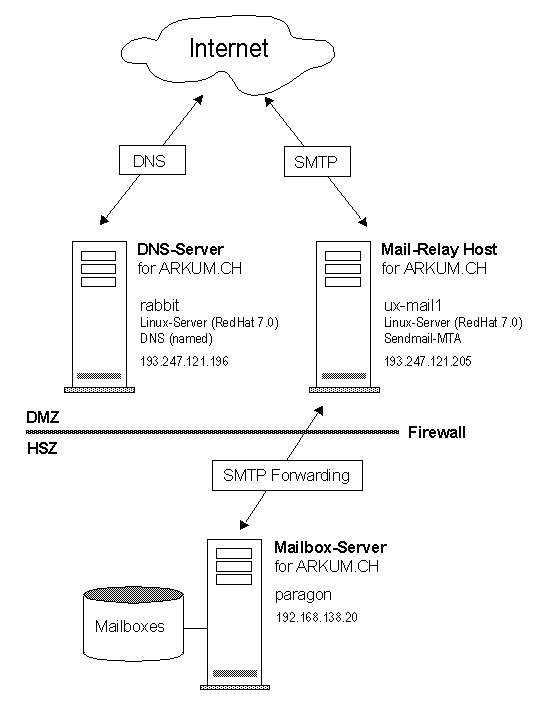
DNS Configuration on DNS-Server
The relay host, the mailbox host and all hosts in DMZ must be inserted in the DNS for the domain ARKUM.CH. Besides this, it's very important to insert the Firewall (NAT Address) in the DNS, or Sendmail will complain about relay problems. As a rule of thumb, all Hosts or IP-Adresses which will use the Relay-Host must be inserted in Sendmail's DNS or you may encounter relaying problems. The configuration files for DNS can be found in /var/named for RedHat Linux.
;---------------------------------------------------------
; arkum-ch.zone -- Name-to-Address Mapping
;---------------------------------------------------------
;
; Start Of Authority marker, indicates that this server is
; the master for the following addresses.
;

@   IN  SOA rabbit.arkum.ch. postmaster.arkum.ch. (
    2000091001    ; Serial (YYYYMMDDnn)
    10800         ; Refresh after 3 hours
    3600          ; Retry after 1 hour
    604800        ; Expire after one week
    86400         ; Minimum Time to Live of 1 day
    )
;
; --------------------------------------------
; Descriptions of Name Servers for this domain
; --------------------------------------------
;

            IN  NS  rabbit.arkum.ch.
            IN  NS  opal.arkum.ch.
;
; Descriptions of Primary and Secondary Mail Servers
; (This tells sendmail where to send mail that is addressed to
; someone@arkum.ch, namely too rabbit.arkum.ch first, then
; to the secondary mail handler opal.arkum.ch)
;

            IN  MX  10  ux-mail1.arkum.ch.
;
; --------------------------------------------
; Arkum's Hosts
; --------------------------------------------
;

localhost   IN  A       127.0.0.1
;
rabbit      IN  A       193.247.121.196
            IN  MX  10  ux-mail1.arkum.ch.
dns         IN  CNAME   rabbit.arkum.ch.
            IN  TXT     "DNS Server"
;
ux-mail1    IN  A       193.247.121.205
smtp        IN  CNAME   ux-mail1.arkum.ch.
mail        IN  CNAME   ux-mail1.arkum.ch.
            IN  TXT     "Mail Relay Host"
;
paragon     IN  A       192.168.138.20
            IN  MX  10  paragon.arkum.ch.
            IN  TXT     "Mailbox Server"
Please note, that the MX record for the mailbox host paragon points to itself.
DNS Configuration on Relay Host
The sendmail MTA on the relay host needs access to the DNS Server. This must be setup in the file/etc/resolv.conf
search arkum.com arkum.ch
nameserver 193.247.121.196
Firewall Configuration
Port 25 (SMTP) must be opened between the Relay Host on the DMZ and the Mailbox Host in the HSZ. Ask your firewall administrator to accomplish this task.
Enable Relaying for all hosts in ARKUM.CH
Relaying (transmission of messages from a site outside your domain to another site outside your domain) is denied by default. Note that this changed in sendmail 8.9; previous versions allowed relaying by default. Relaying is a feature (not a bug) to prevent E-Mail spamming. You have to configure relaying or you will get the error message: 550 Requested action not taken: relaying denied.
Configure Relaying
Using /etc/mail/relay-domains
You need to add the fully-qualified host name and/or IP address of each client to class R, the set of relay-allowed domains. For version for 8.9.X, it is typically /etc/mail/relay-domains Note: if your DNS is problematic, you should list the IP address (e.g., 1.2.3.4); in general, however, this should not be necessary. Here is the content of the file relay-domains:
akadia.com
akadia.ch
arkum.ch
Using /etc/mail/access
An "access'' database can be created to accept or reject mail from selected domains. For example, you may choose to reject all mail originating from known spammers. To enable such a database, use the file /etc/mail/access. Remember, since /etc/mail/access is a database, after creating the text file as described below, you must use makemap to create the database map. 
For example:
makemap hash /etc/mail/access < /etc/mail/access
The table itself uses e-mail addresses, domain names, and network numbers as keys.
For example:
spammer@aol.com     REJECT
cyberspammer.com    REJECT
192.168.212         REJECT
would refuse mail from spammer@aol.com, any user from cyberspammer.com
(or any host within the cyberspammer.com domain), and any host on the
192.168.212.* network.
The value part of the map can contain:
OKAccept mail even if other rules in the running ruleset would reject it, for example, if the domain name is unresolvable
RELAYAccept mail addressed to the indicated domain or received from the indicated domain for relaying
through your SMTP server. RELAY also serves as an implicit OK for the other checks
REJECT Reject the sender or recipient with a general purpose message
DISCARD Discard the message completely using the $#discard mailer. This only works for sender addresses (i.e., it indicates that you should discard anything received from the indicated domain).
Error TextAny text where ### is an RFC 821 compliant error code and "any text" is a message to return for the command.
For example:
cyberspammer.com        550 We don't accept mail from spammers
okay.cyberspammer.com   OK
sendmail.org            OK
128.32                  RELAY
Would accept mail from okay.cyberspammer.com, but would reject mail from all other hosts at cyberspammer.com with the indicated message.It would allow accept mail from any hosts in the sendmail.org domain, and allow relaying for the 128.32.*.* network.
We use the following entries in /etc/mail/access, so all hosts within the domain ARKUM.CH or within the HSZ 192.168.138.x can use the Relay Host without "550 Requested action not taken: relaying denied."
localhost     RELAY
127.0.0.1     RELAY
arkum.com     RELAY
arkum.ch      RELAY
192.168.138   RELAY
Compile the entries with:
makemap hash /etc/mail/access < /etc/mail/access
More information can be found in the README.cf file of sendmail.
How to deliver local mails if DNS- and Mail-Server is the same machine ?
If your DNS-Server and E-Mail Relay Host is the same machine you may encounter the following error message:
554 MX list for akadia.ch points back to rabbit.akadia.ch
554 <root@akadia.ch> ... Local configuration error
The Mail Exchanger (MX Records) in the DNS configuration is just an ordered list of destinations that tells mailers where to send messages if they want to reach a given domain. The preference value tells them how desirable it is to use that destination. That's the basic idea behind MX records and mail exchangers, but there are a few more wrinkles you should know about. Here is the output of a typical MX entry in the DNS configuration for ARKUM.CH
What happens if a mailer finds itself at the highest preference, and has to discard the whole MX list as shown below ?
IN MX 10 rabbit.arkum.ch.
IN MX 20 opal.arkum.ch.
Some mailers attempt delivery directly to the destination host's IP address, as a last-ditch effort. In most mailers however , it's an error. It may indicate that DNS thinks the mailer should be processing (not just forwarding) mail for the destination, but the mailer hasn't been configured to know that. Or it may indicate that the administrator has ordered the MX records incorrectly by using the wrong preference values. Then it will bounce the mail with the familiar error
Many versions of sendmail use class w or file class w as the list of local destinations. The sendmail configuration on RedHat Linux offers the file /etc/sendmail.cw. Enter the local domains in this file and the local delivery together with MX records will work.
arkum.ch
arkum.com
Note again, that this task must not be done, if the DNS Server and Mail Server are two different machines.
Enable local Mail Forwarding from the DMZ to the HSZ
Local Mail must be forwarded from the Relay Host on the DMZ to the Mailbox Host on the HSZ. Sendmail offers this feature using the Macros DR and DM in /etc/sendmail.cf. Enter the Mailbox Host for both Macros, besides this the domain name ARKUM.CH must be masqueraded with the macro DM. 
Here are the necessary entries in /etc/sendmail.cf
# Who I send unqualified names to (null means deliver locally)
DRparagon.arkum.ch

# Who gets all local email traffic
# ($R has precedence for unqualified names)
DHparagon.arkum.ch# Class M: domains that should be converted to $M
CMarkum.com# Who I masquerade as (null for no masquerading) (see also $=M)
DMarkum.ch
Test the Configuration
Stop and Start Sendmail Daemon
/etc/rc.d/init.d/sendmail stop
/etc/rc.d/init.d/sendmail start
Test the internet delivery
Create a testfile to_internet for internet delivery with the following content:
To: martin.zahn@plenaxx.ch
From: martin.zahn@arkum.ch
Subject: Ein Test

Dies ist ein Header Test
(empty line)
Test the internet delivery
cat to_internet | /usr/lib/sendmail -bm -t -v
martin.zahn@plenaxx.ch. Connecting to nt-mail1.plenaxx.ch. esmtp...
220 nt-portal2.plenaxx.ch ESMTP Service (Lotus Domino Release 5.0.2c
(Intl)) ready at Sat, 4 Nov 2000 10:25:28 +0100
>>> EHLO rabbit.akadia.com
250-nt-portal2.plenaxx.ch Hello rabbit.akadia.com ([193.247.121.196]), pleased to
meet you
250-HELP
250-SIZE
250 PIPELINING
>>> MAIL From:<root@rabbit.akadia.com> SIZE=100
250 root@rabbit.akadia.com... Sender OK
>>> RCPT To:<martin.zahn@plenaxx.ch>
250 martin.zahn@plenaxx.ch... Recipient OK
>>> DATA
354 Enter message, end with "." on a line by itself
>>> .
250 Message accepted for delivery
martin.zahn@plenaxx.ch... Sent (Message accepted for delivery)
Closing connection to nt-mail1.plenaxx.ch.
>>> QUIT
221 nt-portal2.plenaxx.ch SMTP Service closing transmission channel
If you get an output similar to the above, your internet delivery is working perfectly !
Test the Mail Forwarding
Create a testfile to_arkum for local delivery with the following content:
To: martin.zahn@arkum.ch
From: root@plenaxx.ch
Subject: Ein Test

Dies ist ein Header Test
(empty line)
Test the local delivery
cat to_internet | /usr/lib/sendmail -bm -t -v
martin.zahn@arkum.ch... Connecting to paragon.arkum.ch. via relay...
220 SMTP service ready
>>> EHLO ux-mail1.arkum.ch
250-Requested mail action okay, completed
250-8BITMIME
250-SIZE
250-ETRN
250 HELP
>>> MAIL From:<root@ux-mail1.arkum.ch> SIZE=93
250 Requested mail action okay, completed
>>> RCPT To:<martin.zahn@paragon.arkum.ch>
250 Requested mail action okay, completed
>>> DATA
354 Start mail input; end with <CRLF>.<CRLF>
>>> .
250 Requested mail action okay, completed
martin.zahn@arkum.ch... Sent (Requested mail action okay, completed)
Closing connection to paragon.arkum.ch.
>>> QUIT
221 SMTP server closing transmission channel
If you get an output similar to the above, your local delivery is working perfectly !
Debug the Configuration
If you encounter troubles with the sendmail configuration, here are some tests to find out what happens.
Show Delivery Agent (Mailer)
/usr/lib/sendmail -d0.12 -bt < /dev/null
Version 8.9.3
Compiled with: LOG MATCHGECOS MIME7TO8 MIME8TO7 NAMED_BIND NETINET
NETUNIX NEWDB NIS QUEUE SCANF SMTP USERDB
OS Defines: HASFLOCK HASGETDTABLESIZE HASINITGROUPS HASLSTAT
HASSETREUID HASSETRLIMIT HASSETSID HASSETVBUF HASSNPRINTF
HASUNAME HASUNSETENV HASWAITPID IDENTPROTO USE_SIGLONGJMP
Def Conf file: /etc/sendmail.cf
Pid file: /var/run/sendmail.pid
canonical name: ux-mail1.arkum.ch
a.k.a.: ux-mail1
UUCP nodename: ux-mail1.arkum.ch
a.k.a.: ux-mail1.arkum.ch
a.k.a.: [193.247.121.205]

============ SYSTEM IDENTITY (after readcf) ============
(short domain name) $w = ux-mail1
(canonical domain name) $j = ux-mail1.arkum.ch
(subdomain name) $m = arkum.ch
(node name) $k = ux-mail1.arkum.ch
========================================================
Show Macros without $u, $M which will be set when mail is already delivered
/usr/lib/sendmail -d35.9 -bt
define(* as $*)
define(+ as $+)
define(- as $-)
define(= as $=)
define(~ as $~)
define(# as $#)
define(@ as $@)
define(: as $:)
define(> as $>)
define(? as $?)
define(| as $|)
define(. as $.)
define([ as $[)
define(] as $])
define(( as $()
define() as $))
define(& as $&)
define(0 as $0)
define(1 as $1)
define(2 as $2)
define(3 as $3)
define(4 as $4)
define(5 as $5)
define(6 as $6)
define(7 as $7)
define(8 as $8)
define(9 as $9)
define(n as MAILER-DAEMON)
define(v as 8.9.3)
define(w as ux-mail1.arkum.ch)
define(j as ux-mail1.arkum.ch)
define(m as arkum.ch)
define(k as ux-mail1.arkum.ch)
define(b as Sat, 4 Nov 2000 13:44:49 +0100)
define(opMode as t)
redefine(w as ux-mail1)
define(S as )
define(R as paragon.arkum.ch)
define(H as paragon.arkum.ch)
define(M as arkum.ch)
redefine(n as MAILER-DAEMON)
define(Z as 8.9.3)
define(deliveryMode as b)
define(_ as root@localhost)
redefine(deliveryMode as i)
Show Sendmail Queue
/usr/lib/sendmail -bp
Mail Queue (2 requests)
--Q-ID-- --Size-- -----Q-Time----- ------------Sender/Recipient------------
RAA01002 27 Fri Nov 3 17:13 root
(martin.zahn@plenaxx.ch... reply: read error from nt-mail1.pl)
martin.zahn@plenaxx.ch
RAA01088 27 Fri Nov 3 17:18 root
(Deferred: Connection reset by nt-mail1.plenaxx.ch.)
martin.zahn@plenaxx.ch
Test the MX-Record readed by Sendmail from DNS
/usr/lib/sendmail -bt
> /mx arkum.ch
  getmxrr(arkum.ch) returns 1 value(s):
  ux-mail1.arkum.ch.
> /mx plenaxx.ch
  getmxrr(plenaxx.ch) returns 1 value(s):
  nt-mail1.plenaxx.ch.
> /mx glue.ch
 
 getmxrr(glue.ch) returns 2 value(s):
  ns.glue.ch.
  chsun.eunet.ch.
If you have still troubles consult our sendmail guide or visit http://www.sendmail.org


source: http://www.akadia.com/services/sendmail_relay.html

Monday, September 28, 2015

Cloud Computing TERMS

Understanding Cloud Computing
Provider clouds provide increased capabilities for heavily utilized systems and networks.
Software as a Service (SaaS) includes web-based applications such as web-based email.
Infrastructure as a Service (IaaS) provides hardware resources via the cloud. It can help an
organization limit the size of their hardware footprint and reduce personnel costs.
Platform as a Service (PaaS) provides an easy-to-configure operating system and on-demand
computing for customers.
Physical control of data is a key security control an organization loses with cloud computing.


Software as a Service
Software as a Service (SaaS) includes any software or application provided to users over a
network such as the Internet. Internet users access the SaaS applications with a web browser. It
usually doesn’t matter which web browser or operating system a SaaS customer uses. They could be
using Internet Explorer, Chrome, Firefox, or just about any web browser.
As mentioned previously, web-based email is an example of SaaS. This includes Gmail, Yahoo!
Mail, and others. The service provides all the components of email to users via a simple web
browser.
If you have a Gmail account, you can also use Google Docs, another example of SaaS. Google
Docs provides access to several SaaS applications, allowing users to open text documents,
spreadsheets, presentations, drawings, and PDF files through a web browser.
A talented developer named Lee Graham and I teamed up to create CertApps.com to create study
materials. He’s an Apple guy running a Mac while I’m a Microsoft guy running Windows, and we live
in different states. However, we post and share documents through Google Docs and despite different
locations and different applications running on our individual systems, we’re able to easily
collaborate. One risk is that our data is hosted on Google Docs, and if attackers hack into Google
Docs, our data may be compromised.
A specialized version of SaaS is Management as a Service (MaaS). With MaaS, an organization
is able to outsource management and monitoring of IT resources. For example, a third party can
routinely review logs and provide reports back to the organization.
Multi-tenancy (sometimes referred to as multi-tenant) is a concept associated with cloud
computing. A multi-tenancy architecture uses a single instance of an application accessed by multiple
customers. You can think of this like a single instance of a web browser accessing multiple web sites
in separate tabs. In contrast, single-tenancy architecture creates a separate instance of a SaaS
application for each customer. Using the web browser analogy, you’d have a separate web browser
window for every site you’re visiting. Customer data remains private for customers in both multitenancy and single-tenancy architectures.


Platform as a Service
Platform as a Service (PaaS) provides customers with a preconfigured computing platform they
can use as needed. It provides the customer with an easy-to-configure operating system, combined
with appropriate applications and on-demand computing.
Many cloud providers refer to this as a managed hardware solution.


Infrastructure as a Service
Infrastructure as a Service (IaaS) allows an organization to outsource its equipment
requirements, including the hardware and all of its support operations. The IaaS service provider
owns the equipment, houses it in its data center, and performs all of the required hardware
maintenance. The customer essentially rents access to the equipment and often pays on a per-use
basis.
Many cloud providers refer to this as a self-managed solution. They provide access to a server
with a default operating system installation, but customers must configure it and install additional
software based on their needs. Additionally, customers are responsible for all operating system
updates and patches.
IaaS can also be useful if an organization is finding it difficult to manage and maintain servers in
its own data center. By outsourcing its requirements, the company limits its hardware footprint. It can
do this instead of, or in addition to, virtualizing some of its servers. With IaaS, it needs fewer servers
in its data center and fewer resources, such as power, HVAC, and personnel to manage the servers.

Remember this
Applications such as web-based email provided over the Internet are
Software as a Service (SaaS) cloud-based technologies. Platform as a
Service (PaaS) provides customers with a fully managed platform, which the
vendor keeps up to date with current patches. Infrastructure as a Service
(IaaS) provides customers with access to hardware in a self-managed
platform. Customers are responsible for keeping an IaaS system up to date.

Public Versus Private Cloud
Public cloud services are available from third-party companies. For example, Dropbox and
Google operate file-hosting services. Some services are available free and some services cost
money. For example, Google offers 15 GB of free storage, but if you want additional storage, you can
purchase it from Google.
A private cloud is set up for specific organizations. For example, the Shelbyville Nuclear Power
Plant might decide it wants to store data in the cloud, but does not want to use a third-party vendor.
Instead, the plant chooses to host its own servers and make these servers available to internal
employees through the Internet.
Not all cloud implementations fit exactly into these definitions through. A hybrid cloud is a
combination of two or more clouds. They can be all private, all public, or a combination. These
retain separate identities to help protect resources in the private cloud. However, they are bridged
together, often in such a way that it is transparent to the users.


Source: Darril Gibson Book Sec+

Cloud Computing

cloud
computing simply refers to accessing computing resources via a different location than your local
computer. In most situations today, you’re accessing these resources through the Internet.
As an example, if you use web-based email such as Gmail, you’re using cloud computing. More
specifically, the web-based mail is a Software as a Service cloud computing service. You know that
you’re accessing your email via the Internet, but you really don’t know where the physical server
hosting your account is located. It could be in a data center in the middle of Virginia, tucked away in
Utah, or just about anywhere else in the world.
Cloud computing is very useful for heavily utilized systems and networks. As an example,
consider the biggest shopping day in the United States—Black Friday, the day after Thanksgiving,
when retailers go into the black. Several years ago, Amazon.com had so much traffic during the
Thanksgiving weekend that its servers could barely handle it. The company learned its lesson, though.
The next year, it used cloud computing to rent access to servers specifically for the Thanksgiving
weekend, and, despite increased sales, it didn’t have any problems.
As many great innovators do, Amazon didn’t look on this situation as a problem, but rather an
opportunity. If it needed cloud computing for its heavily utilized system, other companies probably
had the same need. Amazon now hosts cloud services to other organizations via its Amazon Elastic
Compute Cloud (Amazon EC2) service. Amazon EC2 combines virtualization with cloud computing
and they currently provide a wide variety of services via Amazon EC2.


Platform as a Service (PaaS)
• No servers, no software, no maintenance team, no HVAC
• Someone else handles the platform, you handle the product
• Salesforce.com

Software as a Service (SaaS) 
• On-demand software
• No local installation
• Google Mail

Infrastructure as a service (IaaS)
• Sometimes called Hardware as a Service (HaaS)
• Outsource your equipment
• Web server and email server providers

Sunday, September 27, 2015

Patching

Microsoft releases patches on Patch Tuesday, many attackers go to work. They
read as much as they can about the patches, download them, and analyze them. They often attempt to
reverse engineer the patches to determine exactly what the patch is fixing.
Next, the attackers write their own code to exploit the vulnerability on unpatched systems. They
often have exploits attacking systems the very next day—Exploit Wednesday. Because many
organizations take more than a single day to test the patch before applying it, this gives the attackers
time to attack unpatched systems. For organizations without a patch management program, it gives
attackers much longer to attack unpatched systems.
Additionally, some attackers discover unknown exploits before Patch Tuesday. They recognize
that Microsoft will be releasing patches on the second Tuesday of the month, so they wait until the
second Wednesday before launching major attacks to exploit the vulnerability. Unless Microsoft
releases an out-of-band patch, this gives them a full month to exploit systems before a patch is
available.

Understanding Virtualization

Understanding Virtualization

Virtualization allows multiple servers to operate on a single physical host. They provide
increased availability with various tools such as snapshots and easy restoration.

Virtualization is a technology that has been gaining a lot of popularity in recent years. It allows
you to host one or more virtual systems, or virtual machines (VMs), on a single physical system. With today’s technologies, you can actually host an entire virtual network within a single physical system and organizations are increasingly using virtualization to reduce costs.
When discussing VMs and studying for the CompTIA Security+ exam, you should understand the
following terms:

Hypervisor. The software that creates, runs, and manages the VMs is the hypervisor. Several
virtualization technologies currently exist, including VMware, Microsoft Hyper-V, Windows
Virtual PC (VPC), and Oracle VM VirtualBox. All of these have their own hypervisor
software.

Host. The physical server hosting the VMs is the host. It requires more resources than a
typical system, such as multiple processors, massive amounts of RAM, fast and abundant hard
drive space, and one or more fast network cards. Although these additional resources increase
the cost of the host, it is still less expensive than paying for multiple physical systems. It also
requires less electricity, less cooling, and less physical space.

Guest. Operating systems running on the host system are guests or guest machines. Most
hypervisors support several different operating systems, including various Microsoft
operating systems and various Linux distributions. Additionally, most hypervisors support
both 32-bit and 64-bit operating systems.
Patch compatibility. It’s important to keep VMs patched and up to date. Patches applied to
physical systems are compatible with virtual systems.
Host availability/elasticity. Elasticity refers to the ability to resize computing capacity based
on the load. For example, imagine one VM has increased traffic. You can increase the amount
of processing power and memory used by this server relatively easily. This allows you to
ensure it remains available even with the increased demand.
Snapshots

Snapshots provide you with a copy of the VM at a moment in time, which you can use as a
backup. If the VM develops a problem, you can revert the image to the state it was in when you took
the snapshot. You are still able to use the VM just as you normally would. However, after taking a
snapshot, the hypervisor keeps a record of all changes to the VM.

Administrators commonly take snapshots of systems prior to performing any risky operation.
Risky operations include applying patches or updates, and installing new applications. Ideally, these
operations do not cause any problems, but occasionally they do. By creating snapshots before these
operations, administrators can easily revert the system to the previous state.


Note: Virtualization allows multiple virtual servers to operate on a single physical
server. It provides increased availability with lower operating costs.
Additionally, virtualization provides a high level of flexibility when testing
security controls, updates, and patches because they can easily be reverted
using snapshots.


From Darriel Gibson's Sec + Book

System Image (Gold Image)

Using Imaging for Baselines
One of the most common methods of deploying systems is with images. An image is a snapshot
of a single system that administrators deploy to multiple other systems. Imaging has become an
important practice for many organizations because it streamlines deployments while also ensuring
they are deployed in a secure manner.

Capturing and deploying images
1. Administrators start with a blank source system. They install and configure the operating
system, install and configure any desired applications, and modify security settings.
Administrators perform extensive testing to ensure the system works as desired and that it
is secure before going to the next step.

2. Next, administrators capture the image. Symantec Ghost is a popular imaging application,
and Windows Server 2012 includes free tools many organizations use to capture and
deploy images. The captured image is simply a file that can be stored on a server or
copied to external media, such as a DVD or external USB drive.

3. In step 3, administrators deploy the image to multiple systems. When used within a
network, administrators can deploy the same image to dozens of systems during an initial
deployment, or to just a single system to rebuild it. The image installs the same
configuration on the target systems as the original source system created in step 1.
Administrators will often take a significant amount of time to configure and test the source
system. They follow the same hardening practices discussed earlier and often use security and
configuration baselines. If they’re deploying the image to just a few systems such as in a classroom
setting, they may create the image in just a few hours. However, if they’re deploying it to thousands of systems within an organization, they may take weeks or months to create and test the image. Once
they’ve created the image, they can deploy it relatively quickly with very little administrative effort.
Imaging provides two important benefits:

Secure starting point. The image includes mandated security configurations for the system.
Personnel who deploy the system don’t need to remember or follow extensive checklists to
ensure that new systems are set up with all the detailed configuration and security settings.
The deployed image retains all the settings of the original image. Administrators will still
configure some settings, such as the computer name, after deploying the image.
Reduced costs. Deploying imaged systems reduces the overall maintenance costs and
improves reliability. Support personnel don’t need to learn several different end-user system
environments to assist end users. Instead, they learn just one. When troubleshooting, support
personnel spend their time focused on helping the end user rather than trying to learn the
system configuration. Managers understand this as reducing the total cost of ownership (TCO)
for systems.

Many virtualization tools include the ability to convert an image to a virtual system. In other
words, once you create the image, you can deploy it to either a physical system or a virtual system.
From a security perspective, there is no difference how you deploy it. If you’ve locked down the
image for deployment to a physical system, you’ve locked it down for deployment to a virtual system.

Imaging isn’t limited to only desktop computers. You can image any system, including servers.
For example, consider an organization that maintains 50 database servers in a large data center. The
organization can use imaging to deploy new servers or as part of its disaster recovery plan to restore
failed servers. It is much quicker to deploy an image to rebuild a failed server than it is to rebuild a
server from scratch. As long as administrators keep the images up to date, this also helps ensure the
recovered server starts in a secure state.

Configuration Baselines
A configuration baseline identifies the configuration settings for a system. This includes settings
such as printer configuration, application settings, and TCP/IP settings. This is especially useful when
verifying proper operation of a system. As an example, if a server is no longer operating correctly, it
might be due to a configuration change. Administrators might be able to identify the problem by
comparing the current settings against the baseline and correcting any discrepancies.
The differences between a configuration baseline and a security baseline can be a little fuzzy.
The security baseline settings are strictly security related. The configuration baseline settings ensure
consistent operation of the system. However, because the configuration baseline contributes to
improved availability of a system, which is part of the security triad, it also contributes to overall
security.
An important consideration with a configuration baseline is keeping it up to date. Administrators
should update the configuration baseline after changing or modifying the system. This includes after
installing new software, deploying service packs, or modifying any other system configuration
settings.

Based on Darril Gibson's Security+ book.

Saturday, September 26, 2015

SYNC flood Attack

The SYN flood attack is a common denial-of-service (DoS) attack. The three way
handshake to establish a session. As a reminder, one system sends a SYN packet, the second
system responds with a SYN/ACK packet, and the first system then completes the handshake with an
ACK packet. However, in a SYN flood attack, the attacker sends multiple SYN packets but never
completes the third part of the TCP handshake with the last ACK packet.